Docker Volume

I am DevOps Engineer who works on DevOps tools like Docker, Kubernetes, Terraform, Git, GitHub, Jenkins and AWS services.
Docker Volume -
-> Docker Volume is used to store the data of the containers.
-> Main benefit of using Docker Volume is that even if our container has been deleted then the data stored in the container will be available if we use docker volume.
-> If we do not use volume then when the container is deleted then our data stored in that container also gets deleted along with container.
-> For using the docker volume with Container, we have to do the following –
1. Create docker volume –
To see the list of docker volumes -
docker volume ls

-> In the above image, We can see that there are no any volumes.
Command to create docker volume is -
docker volume create <volume name>
Ex – docker volume create docker-vol

-> Here we have created a docker volume which is docker-vol.
To see the list of volumes -

-> Here we can see that our volume docker-vol is created.
2. Attach the docker volume with the container at the time of running –
docker run –d -–name <container name> --mount source = <docker volume name>, target=<directory or folder that want to store in the docker volume > <image name>
Ex – docker run –d --name my-container –-mount source = docker-vol, target = /mydockerdata nginx
-> Suppose we have to store the data which is in mydockerdata folder, then we can map this to the docker volume.
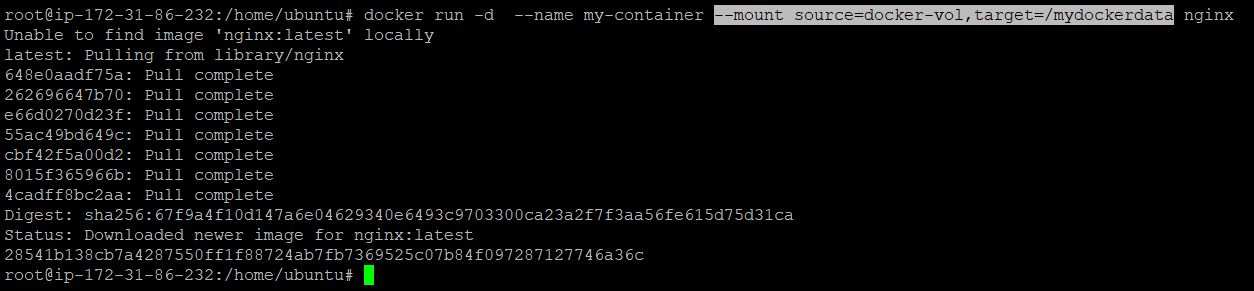
-> Here we have attached our volume with the my-container.
-> When we run docker inspect <container name> which is docker inspect my-container command then we can see that our container is mounted with the volume.
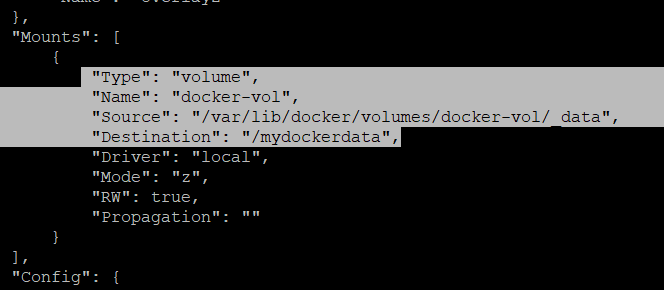
-> By running docker exec -it my-container /bin/bash command, we enter inside the container

-> Now by running ls command, we can see that our target directory or folder mydockerdata has been created inside the container.

-> Now we go inside the mydockerdata directory and create some files -
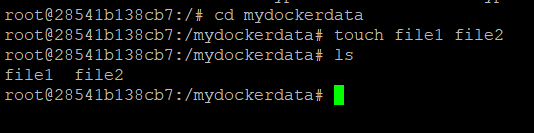
-> Here we have create two files file1 and file2.
-> Since we have mapped this folder(mydockerdata) with our docker volume(docker-vol), so whatever data is stored in this location, that should be availabe in docker-vol.
-> To verify that, let us check the docker volume, and to get the path of data, we have seen earlier that by running docker inspect my-container command, we get Mounts section where we have Source and it gives the path of data in docker volume.
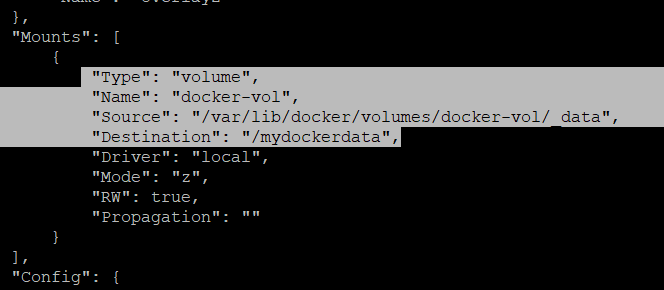
-> Now come out from the my-container by running exit command and then go to /var/lib/docker/volumes/docker-vol/_data path and run ls command. Now we can see the data which was in mydockerdata folder(file1 and file2) inside the container that is available in our volume also.

-> Now even if we delete our container, still our data will be available in docker volume.
-> Here we have deleted our container my-container -
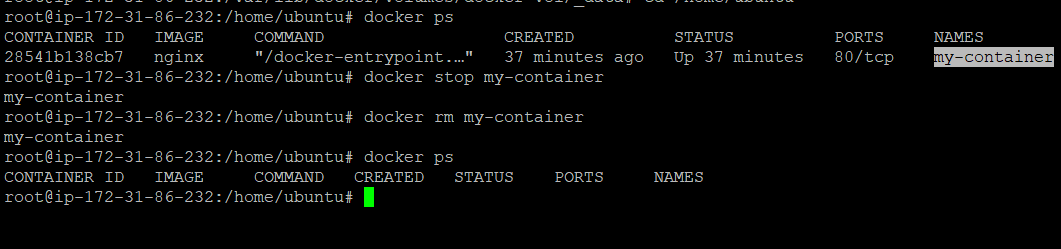
-> Now we will check that still our data is available or not at /var/lib/docker/volumes/docker-vol/_data path.

-> Here we can see that our data is available even if we have deleted the container.
-> This data will be deleted if we delete the volume.
-> We can map this docker volume data with other containers also and then data will be accessed -

-> Here we can see that data(file1 and file2) which was created in my-container is visible in my-new-container after mapping my-new-container with docker-vol volume.
Commands related to docker volume are -
1. docker volume ls - It will list all the volumes
2.docker volume create <volume name> - Create a new volume
Ex - docker volume create docker-vol
3.docker volume inspect <volume name> - It will show the information of the directory where our container data is stored in the volume.
Ex - docker volume inspect docker-vol
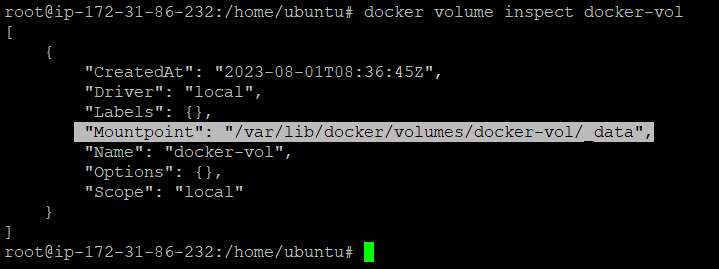
-> By running docker volume inspect docker-vol command we get the docker where data gets stored in the volume.
4. docker volume remove <volume name> - It will delete the volume
Note - If docker volume is attached with any container then it will not be deleted. To delete it, first we will need to delete the container, otherwise it gives below error.

Ex- docker volume rm docker-vol
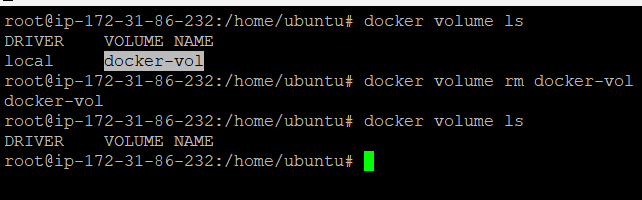
-> Here we have deleted our volume.
